Choose translations and transliteration
You choose exactly what appears with Gurbani, separately from the app's own language.
- Open Simran and tap the Me tab, then the gear icon in the top corner to open Settings.
- Under Preferences, tap Reader Settings.
- Under Display Options, turn on the layers you want.
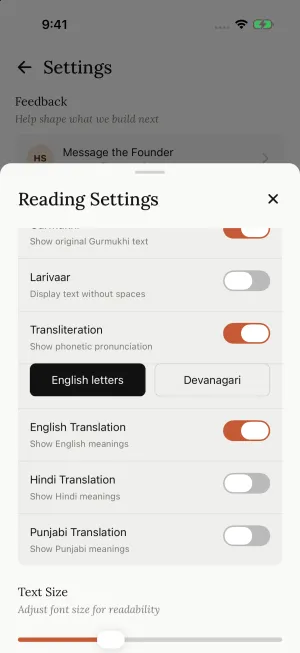
- Gurmukhi: the Gurbani itself.
- Transliteration: how the Gurmukhi sounds, in English letters or Devanagari.
- English Translation, Hindi Translation and Punjabi Translation: turn on one, several, or none.
The same panel opens from the Hukamnama, Nitnem and Gurbani reading screens, and your choices apply everywhere.
Common setups
- English app, Punjabi translation: keep App Language on English, turn on Punjabi Translation and turn off English Translation.
- Hindi readers: turn on Hindi Translation and set Transliteration to Devanagari.
- Gurmukhi only: turn off Transliteration and every translation.
Reader settings are saved on each phone, so set them again on a new phone.
Still need help?
We read every message. Include the ID from the bottom of Settings in the app so we can find your account quickly.
Write to us